
Navigating the Dashboard
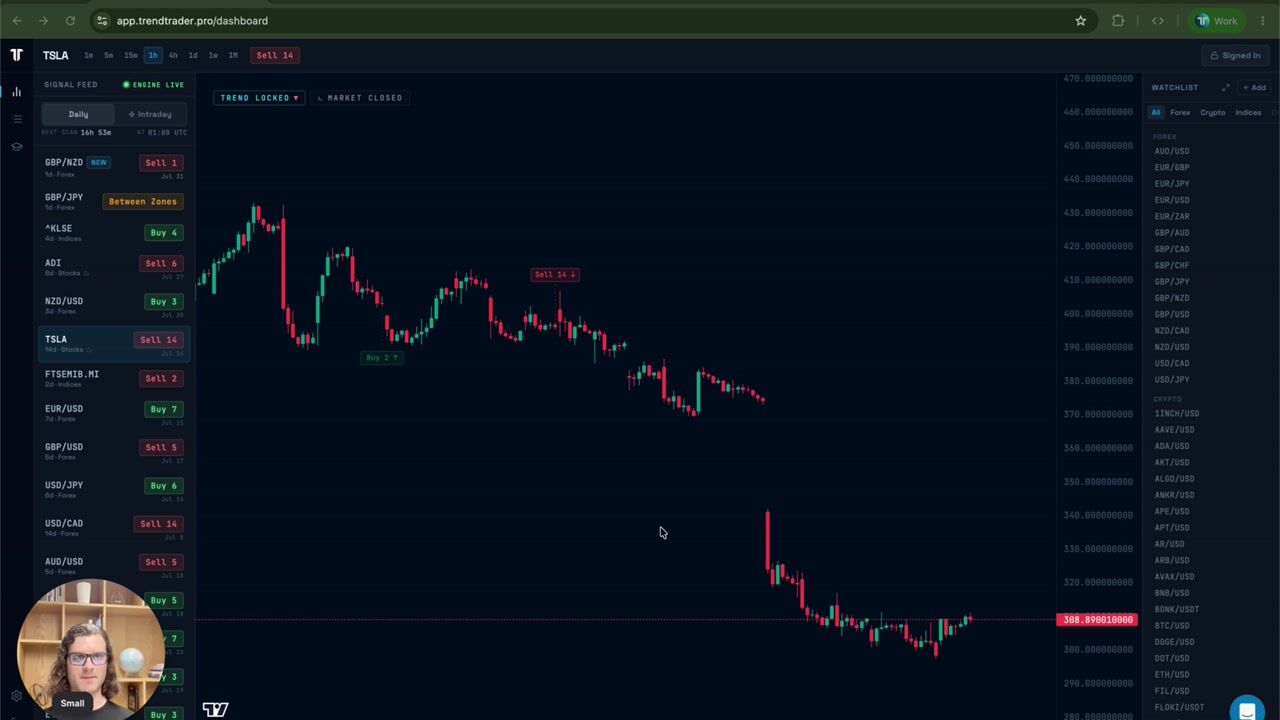 7:33
7:33
A guided tour of the three panels you will live in: the Signal Feed, the chart, and your Watchlist. Nick shows how the watchlist controls what appears in your feed, what the Trend Locked pill and the NEW badge mean, how the chart marks the active and previous signal, which timeframes are available, and when the daily and intraday scans run so you know exactly when to expect fresh signals.
Watch free in the platform →How to watch
- Create a free account. Every University lesson is included — no plan required.
- Open University in the platform. Video lessons and Quick Reads, unlocked from day one.
- Watch Navigating the Dashboard and the rest of Getting Started at your own pace. A new video lands every week.
More in Getting Started
Everything you need to get up and running with TrendTrader Pro. Learn the platform, understand the signal feed, and create your first watchlist.
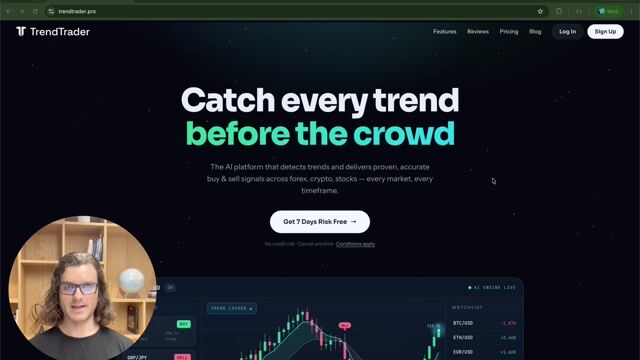 23:34
23:34
Welcome to TrendTrader Pro
Meet Nick and the platform he built after a decade in the business. He covers where TrendTrader Pro came from, what it is (a trend-detection algorithm and an entry-confirmation system combined into one tool, not a broker), who the daily and intraday engines are for, and why the signals are selective rather than noisy. Then a full tour of the website, the plans, the affiliate program, support, and where the platform is heading next.
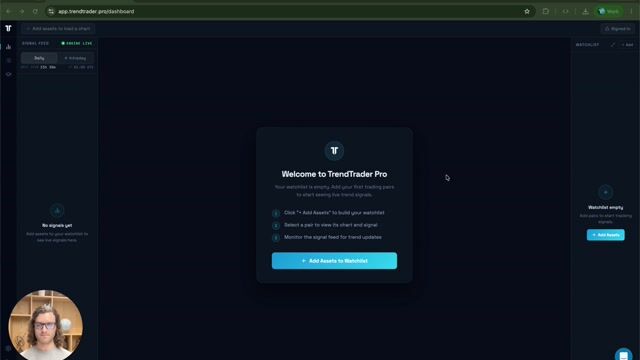 4:08
4:08
Setting Up Your Watchlist
Your feed stays empty until you add assets, so this is step one. Nick walks through searching for any symbol, adding the 48 Popular assets or an entire asset class in one click, and managing the 100-asset limit. Then the expanded watchlist view: sorting by newest trends, longest running, asset class, or fresh flips, and removing assets one at a time, in bulk, or all at once.